Couple words for introduction
Today I share another recycled (3rd time) repaint for one of my favorite airplanes ….which is no surprise, right? Why would I do repaint for an aircraft I do not like… From the title, of course, you know, this is about the Boeing 737-800, and in the context of Microsoft Flight Simulator 2024, the one created by PMDG, the PMDG 737-800 NG. Just for completeness, here is the post about Prepar3D version – Mouseviator repaint for PMDG 737-800 NGXu, and MSFS 2020 version – Mouseviator repaint for PMDG 737-800 NGX for Microsoft Flight Simulator.
After doing quick research with AI, I found out that the Microsoft Flight Simulator 2020 version should work in 2024 version without major edits (in graphics) … appears it just needs different texture format and file structure… Ok, I do new export and that, could take like 4 hours, I thought…
Digging in my archives and backup, what an unpleasant suprise it was to found out that the source files of my “Mouseviator repaint for PMDG 737-800 NGX for Microsoft Flight Simulator” conversion from Prepar3D to MSFS 2020 is gone completely and the “J.Spejbl 100th Anniversary repaint for PMDG 737-800 for Microsoft Flight Simulator” is half-corrupted – so, back to drawing board…
I could have converted it from the “ptp” distribution of my MSFS 2020 versions, but at the end, that would mean double compression and degradation in quality. Even though you might not notice it, I would have known. Luckily, it is still not like starting from scratch, just from P3D version, meaning to redone the modifications that was done between the P3D-MSFS versions and complete rework of COMP textures ,which is not that much work, but…..
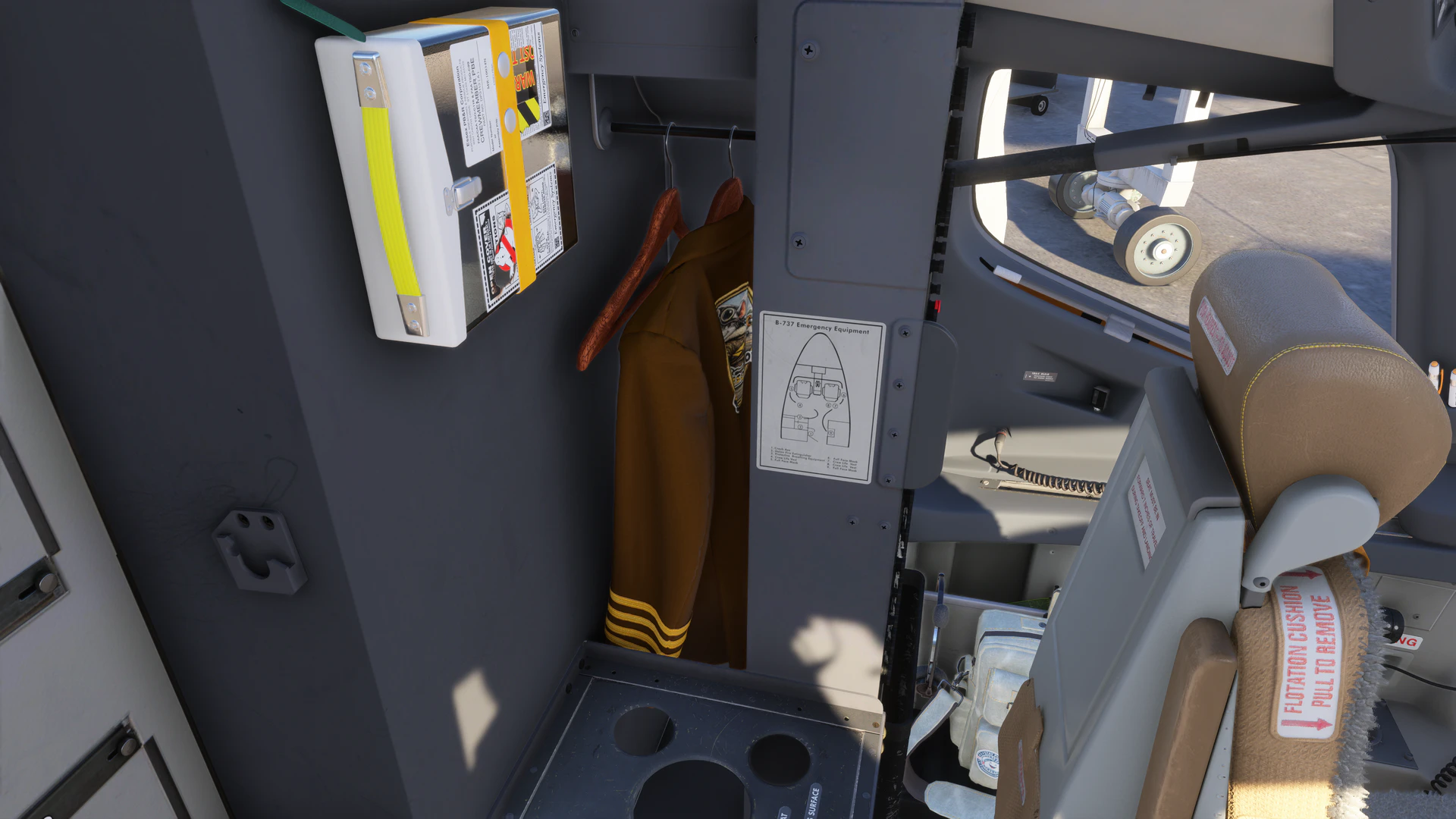
Here we are, month and half later since I started. Exploring the aircraft in MSFS 2024, thanks to new possibilities we have now (AI upscaling, for example), I decided not to let the repaint leave as simple re-export of the 2020 version. Those new possibilities allowed me to do some customizations, mainly in the virtual cockpit and the cabin. So this new repaint is expanded compared to the 2020 version. I did also a version for the BBJ variant of the aircraft (suppose that 6 years of virtual flying passenger version, and those 6 flights I did in that time, made enough bucks to get myself a private jet :)). Also, 8K version of the repaints are now available (even though they are kind of standard today).
The note on the “content”
The repaint(s) shared here, was made … just because as many other out there, because I love flight simulation. This is the third version of my repaint, now for MSFS 2024 and it has been expanded since the versions for MSFS 2020 and Prepar 3D.
You may find many references here and there (all fictional, by the way…), to actors, movies, TV shows etc… stuff that I grew up on and that I love (and I guess it won’t change while I’m alive). Some of them you may get, some maybe not… Most of that was generated with the help of AI (otherwise I would spend two more years painting that) and my intention was to have funny and relaxing airplane repaint, where I can meet with my heroes and sort of experience what is hardly possible in real life – in short, escape from reality. In no way there was any intention to disrespect, humiliate, offend or show in an inaproperiate situation – anyone (except me).
So I hope no one will feel that way.
Actually, it’s the opposite, it’s also my honor and thanks to all the people thanks to whom the things I refer to came into being.
Legal stuff, yes the boring part
Hey, I have read all this stuff with your previous repaints, just get me to download links…
The fictional repaint(s) for Boeing 737-800 airplane included in the archive is provided as is without any warranty. As you read with most software products, use it at your own risk. I take no responsibility for anything.
Let’s try to write it short for once 🙂
Please respect the following:
If you would like to redistribute this repaint, what the heck… , feel free to share it. It would be nice to let me know where, if so. Just please don’t write me because of every friend you share this via USB drive 🙂 I meant more like sharing on the web. As for now, it is available at these websites:
Any action linked to this repaint that would end up with even a penny of profit in your pocket, si FORBIDDEN. It is being released as free and is supposed to stay free, as well as all derivative works. Do not do anything inappropriate with this repaint. I believe all of you can judge what is appropriate and what is not in that flight simulation hobby of ours.
If you want to edit this repaint, you can! But this repaint contains some marks (art), that are not my property and this should be considered in the edited repaint also, thus should be noted. See the 3rd party resources section.
Also if you keep the Mouseviator logo, it would be nice if you don’t use the repaint to promote yourself, your website or use it to throw mud on me or my website … let’s just be nice and respective on each other. You distribute your edited repaint as you wish, but it still must be for free.
3rd party resources
Many 3rd party resources was used in creation of this repaint, which I am not author of. Specifically, it is the image of our famous czech puppets – Spejbl and Hurvinek, the “Chem-trails” logo on the airplane belly, and the drawing of pin-up girl on vertical stabiliser. The author of the drawing of the Pin-up is Peruvian pin-up artist Alberto Vargas. You can find more about him here:
https://en.wikipedia.org/wiki/Alberto_Vargas
and many more, created by many other talented people. The list got a little big, and to keep this post a bit shorter than an “uncontrollably unrolled roll of toilet paper”, I will just tell you here that the other resources are mentioned in the Readme files that are included in each archive. Take a look there.
I may have forgot something/somebody , but hey, still this is a personal, non-commercial, project for fun. So I hope that if I forgot to mention “your” asset(s), you won’t hunt me in dreams… 🥺
Download
Here you can download the repaint for PMDG 737-800 NG for MSFS 2024. I exported the repaint for both variants of the model, with Blended Winglets and with Split Scimitar Winglets. Get the one you like the most, or both of them 🙂
Passenger version (OK-MVC)
Download from this website (8K versions only):

Download from Google Drive (all versions):
BBJ version (OK-MVP)
Download from this website (8K versions only):
Download from Google Drive (all versions):
Installation
The liveries distribution…, kind of returns to the past. It is again being distributed as zip archive. But please, read before you just try to unpack it into community folder. The archive you download, contains some readme files (czech and english) and folder named livery. In that folder is the actual livery zip file. For example: mouseviator-ok-mvc-2026-8k-ssw.zip. This is the file with the livery and you are supposed to use PMDG Operations Center 3.0 to install it. The fact is, it is little bit easier to install that way, rather than searching for community folder and extracting there. The another benefit is, that this file also contains the aircraft specific settings, so unless you change it, you will have the same equipment on board as I have when soaring in the virtual skies. Here is how you install with PMDG Operations Center 3.0:
- Open PMDG Operations Center 3.0
- In the left menu, select MSFS 2024 and then click on that big icon with 737-800 for MSFS.

- Than click on the green Import button…

- Which will open standard Open file dialog. Navigate to the livery zip file, select it and click Open.

- Once you select the livery file, PMDG Operations Center will start importing it. You should see the progress:

and then the info about successfull import:

- Install other liveries using the same steps, if you want.
- Go flying
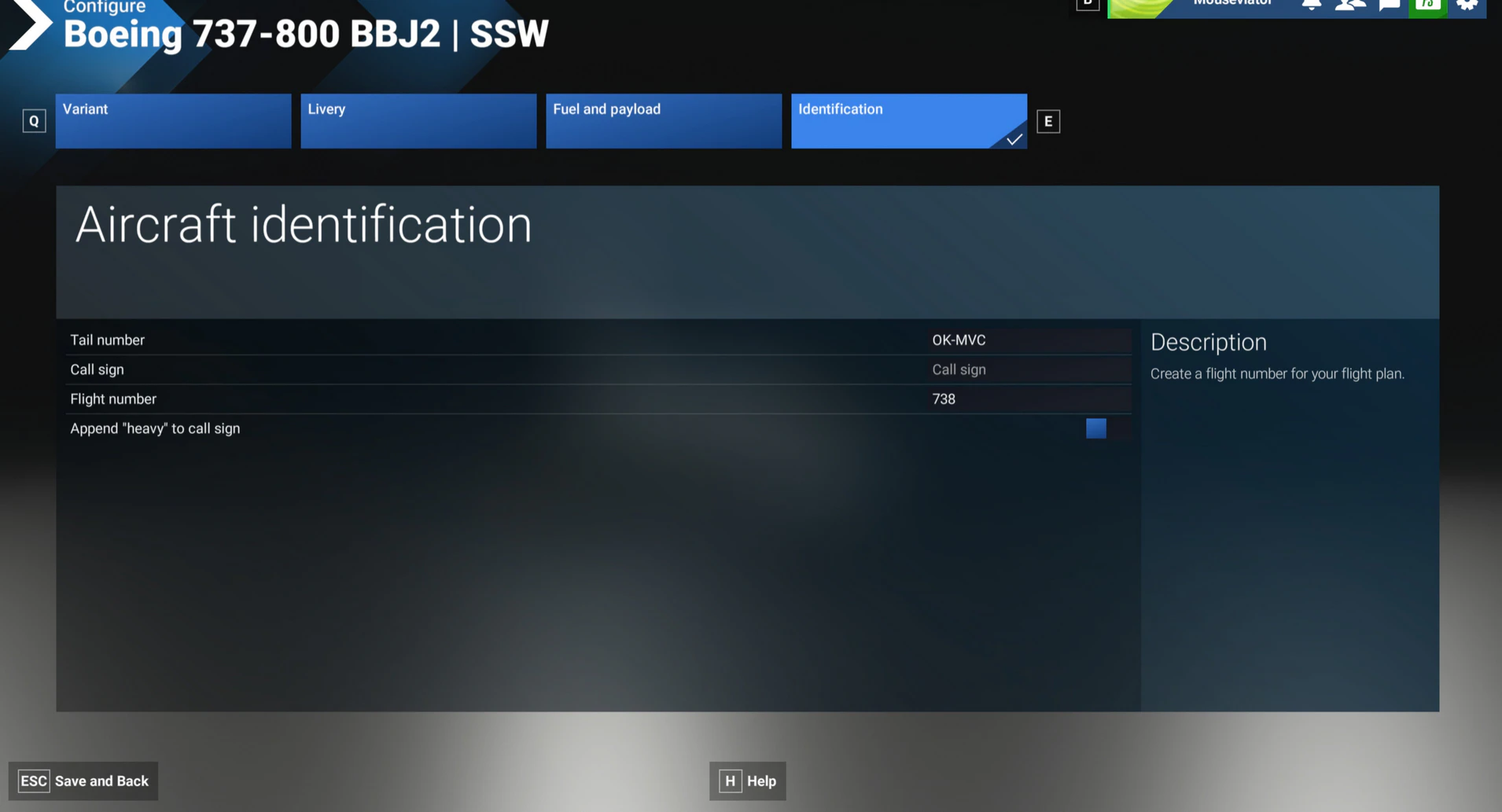
Note: If you want the aircraft to be loaded in the configuration I mentioned it to have with this repaint, you need to set the “Tail number” to the “OK-MVC” (or “OK-MVP” in case of BBJ variant)at the “Identification” tab when selecting the aircraft and livery. In Prepar3D, this was related to the livery itself, in MSFS this “specific” aircraft configuration is related to the aircraft registration (Tail number).

Gallery
As always, some images of the aircraft follows. All the images are of the SSW (Split Scimitar Winglets) version, but other versions look the same. First some images of the passenger version – OK-MVC. I did not take that many screenshots, as you saw it twice in the past 🙂




And the new BBJ version (OK-MVP):


Bonus – Custom tablet background
I’ve also override the background of PMDG 737-800 tablet home screen. Should you want to use that one too, keep reading. It could very well serve as a template to push your own home screen on the in-flight tablet, I believe 🙂

It does not change any aircraft systems or performance – it only replaces the visual background shown on the tablet for more personalized look.
It is really simple and just overrides the background image in:
\html_ui\Pages\VCockpit\Instruments\PMDGTablet\pmdg-737-800\Assets\So feel free to use this as template for your won background (should be enough just to replace my image with your own).
Important note
⚠️ This package REPLACES the tablet background for ALL liveries.
The background is not livery-specific. Once installed, the same background will be used in every PMDG 737-800 variant. The original background image
from PMDG stays intact. You can revert back to it simply by removing this package from the community folder.
How to install?
The archive you download, contains some readme files (czech and english) and a folder named “to community folder“. In that folder is the actual folder, named mouseviator-pmdg-aircraft-738-tablet-mod. That is the actual package. That folder needs to be copied/moved to the MSFS 2024 community folder.
Where is the Community folder?
The Community folder is created automatically by Microsoft Flight Simulator.
Typical locations:
Microsoft Store version
C:\Users\YOURNAME\AppData\Local\Packages\Microsoft.Limitless_8wekyb3d8bbwe\LocalCache\Packages\Community
Steam version
C:\Users\YOURNAME\AppData\Roaming\Microsoft Flight Simulator\Packages\Community
If you are not sure where your Community folder is located:
- Start Microsoft Flight Simulator 2024.
- Click on the icon that looks like shopping bag with FS written in it, in top right corner of the screen – to access FS Market.

- Then select My Library and on the right side of the screen and then click on the small icon with the gear.

- A dialog will be opened where you an see where is your community folder located. You can even change it to somewhere else here.

Download
Download the package here: